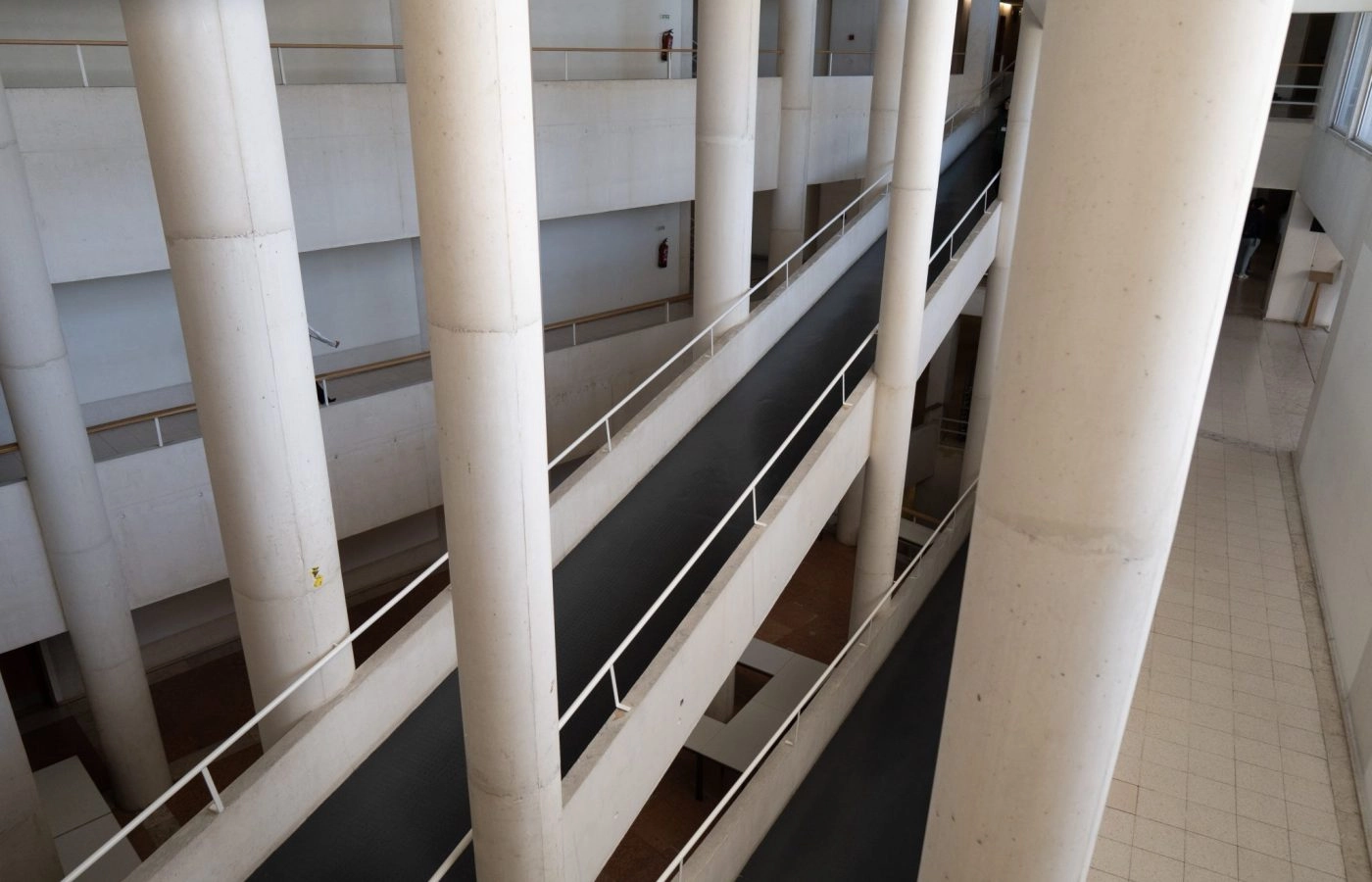
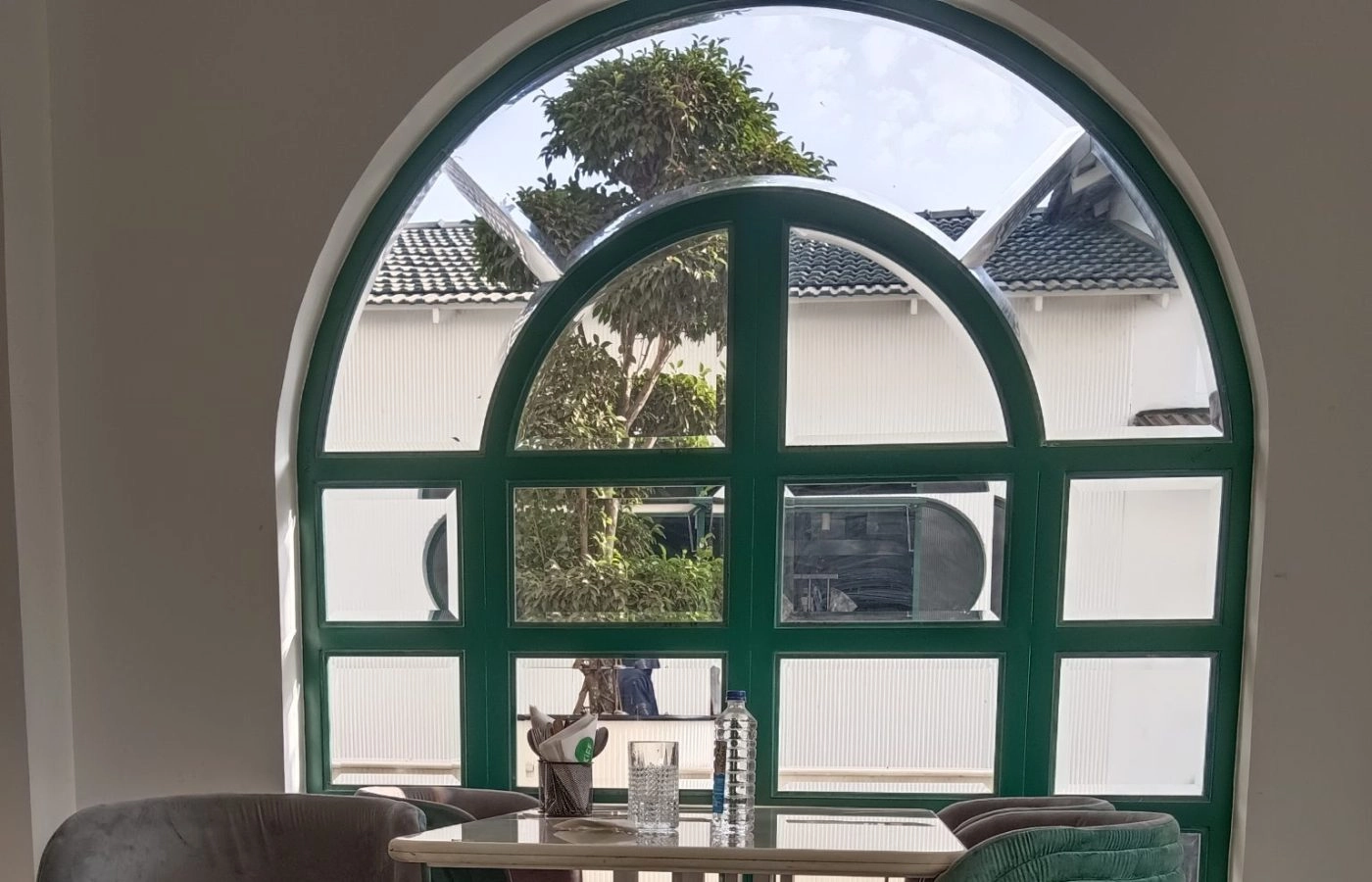
Image Before & After Element
The Image Before & After Element compares two images of the same subject, for example a room before and after renovation, a photo before and after retouching or a part before and after repair. Both images sit on top of each other in one frame.
It offers two effects. Slide places a handle on the image that the visitor drags, clicks or hovers to reveal more of one image or the other. Fade shows the before image and switches to the after image when the visitor points at it.
In this article: How To Use · Element Options · Tips · Related Elements · Example
How To Use The Image Before & After Element
Add the element to any column and choose the Effect Type. Upload the Before Image and the After Image; both should have the same size and framing so the comparison lines up. With the Slide effect you can add a Before Image Label and an After Image Label. With the Fade effect you can link the element with Link URL and Link Target instead.
On the Design tab the Slide effect offers the handle options: Handle Design Style, its colors, the starting Handle Offset in percent, a horizontal or vertical Handle Orientation and the Handle Movement Control (drag only, drag and click, or hover). Labels get a font size, an accent color, a placement and a hover behavior. For the Fade effect, set the Image Fade Transition Speed.
For both effects you can limit the width with Max Width, align the element, and add a border and border radius. The Extras tab adds an entrance animation and conditional rendering.
Element Options
The tables below list every option of the element, grouped by the tabs you see when you edit it in the Builder. Many options depend on others, so the edit screen only shows the options that apply to your current choices.
Options left on Default take their value from Tirenoa → Options → Tirenoa Builder Elements → Image Before & After. Change them there to style every Image Before & After at once.
General
| Heading | Description |
|---|---|
| Effect Type | Select which type of effect your before and after image uses. “Slide” provides a handle to move back and forth while “Fade” changes the image on mouse hover. |
| Before Image | Upload a before image to display. |
| Before Image Label | Add text that will be displayed as a label on the before image when hovered. If left empty, no label will show. |
| After Image | Upload an after image to display. |
| After Image Label | Add text that will be displayed as a label on the after image when hovered. If left empty, no label will show. |
| Link URL | Add the URL the item will link to, for example http://example.com. |
| Link Target | Controls how the link will open. |
| Margin | Enter values including any valid CSS unit, for example 4%. |
| Element Visibility | Choose to show or hide the element on small, medium or large screens. You can choose more than one at a time. |
| CSS Class | Add a class to the wrapping HTML element. |
| CSS ID | Add an ID to the wrapping HTML element. |
Design
| Heading | Description |
|---|---|
| Label Font Size | Controls the font size of the label text. In Pixels. Note: font family is controlled by body font in Global Options. |
| Label Accent Color | Controls the color of the label background and text. Text takes 100% of this color, background takes a % of it. |
| Label Placement | Choose if labels are on top of the image and centered, on top of the image up & down or outside of the image up & down. |
| Label Hover Type | Choose if labels should appear together on hover, or if only the label of the currently hovered image should appear. |
| Image Fade Transition Speed | Controls the speed of the fade transition on mouse hover. In seconds. |
| Handle Design Style | Controls the design of the handle used to change the before and after image. |
| Handle Color | Controls the color of the before and after image handle line and arrows. for example #ffffff. |
| Handle Background Color | Controls the background color of the before and after image handle switch. for example #000000. |
| Handle Offset | Controls where the handle will be positioned on page load allowing you to control how much of each image displays by default. In percentage. |
| Handle Orientation | Controls the position of the before and after image handle. |
| Handle Movement Control | Controls how the viewer interacts with the image handler. The image handle can use Drag & Click, Drag Only, or Hover. |
| Max Width | Set the maximum width the element should take up. Enter value including any valid CSS unit, for example 200px. Leave empty to use full image width. |
| Alignment | Choose how to align the image. |
| Border Size | In pixels. |
| Border Color | Controls the border color. |
| Border Radius | Controls the image border radius. In pixels (px), for example 1px, or “round”. |
Extras
| Heading | Description |
|---|---|
| Conditional Rendering | Add conditional rendering logic for the element. The element will only be part of the post / page contents, if the set conditions are met. NOTE: Server cache can interfere with results. |
| Animation Type | Select the type of animation to use on the element. |
| Direction of Animation | Select the incoming direction for the animation. |
| Animation Color | Select the color of the animation. |
| Speed of Animation | Type in speed of animation in seconds (0.1 – 5). |
| Animation Delay | Select the delay time after the animation starts(0 – 5). |
| Offset of Animation | Controls when the animation should start. |
Tips
- Use two images with the same dimensions and the same framing, taken from the same position, so that details line up when the visitor compares them.
- Labels only appear when you enter text for them, and only with the Slide effect.
- Handle Offset sets how much of each image is visible when the page loads; 50 shows both halves equally.
- Options left on Default follow the Image Before & After settings in Global Options.