Gallery Element
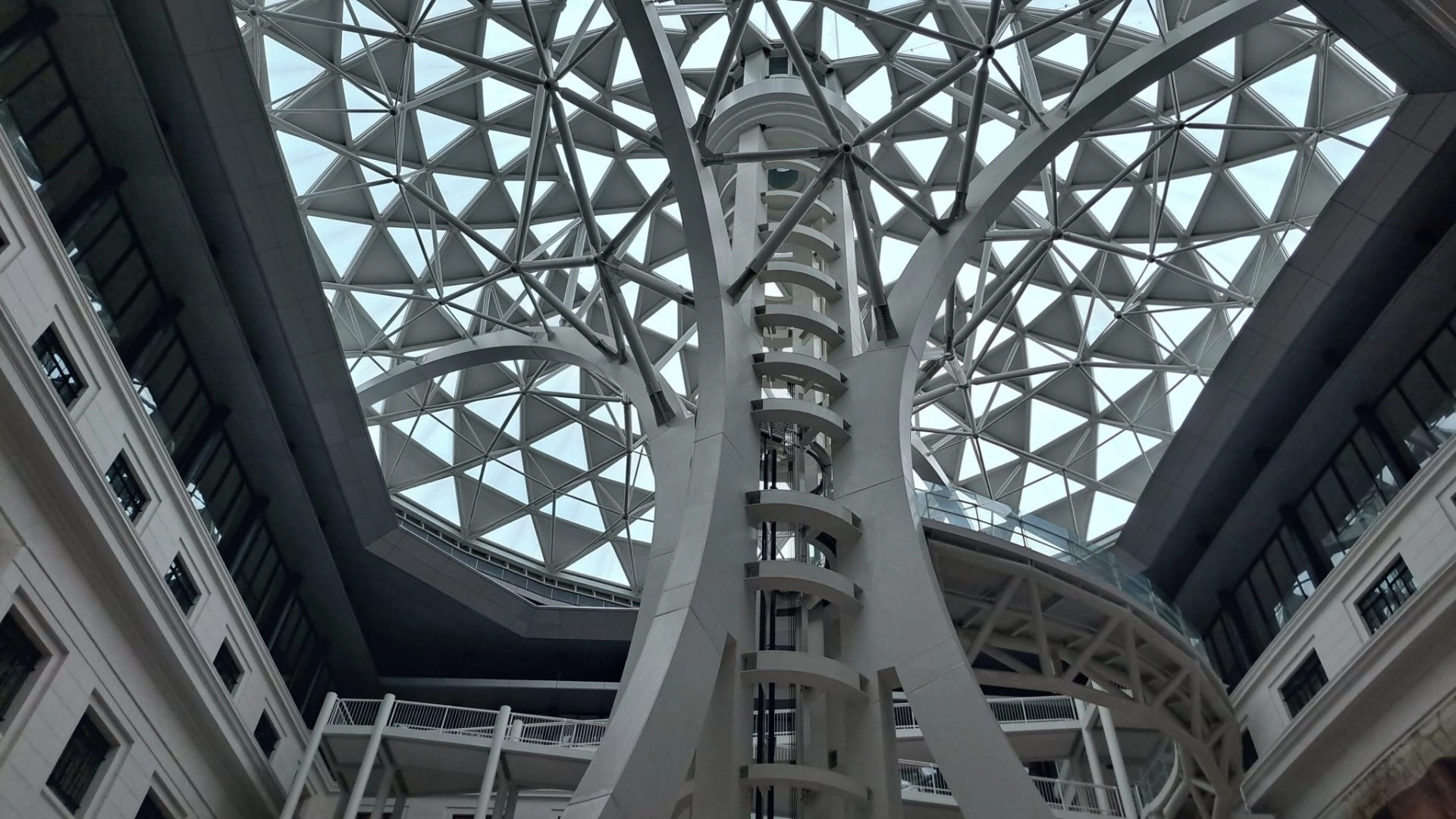
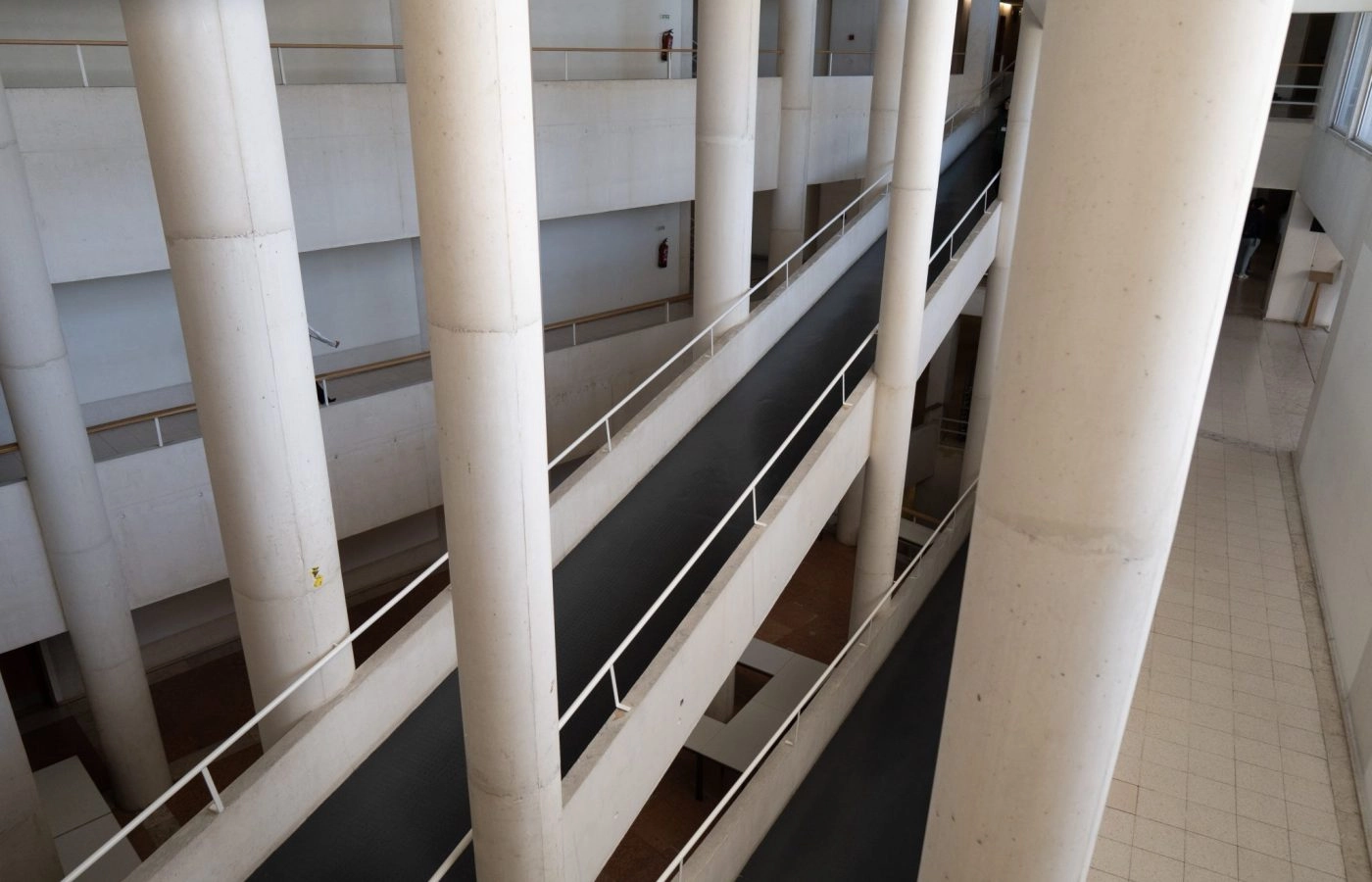
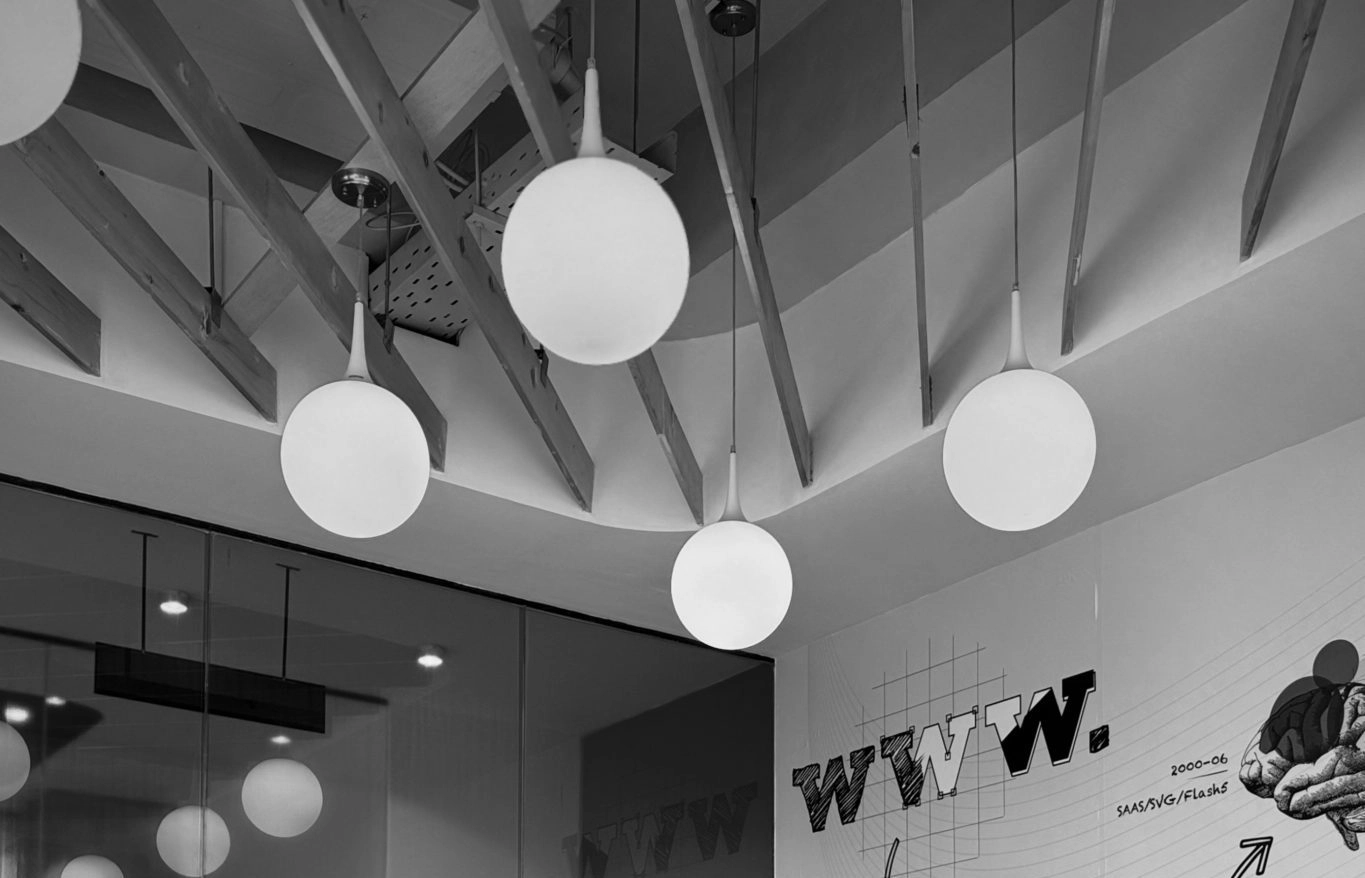
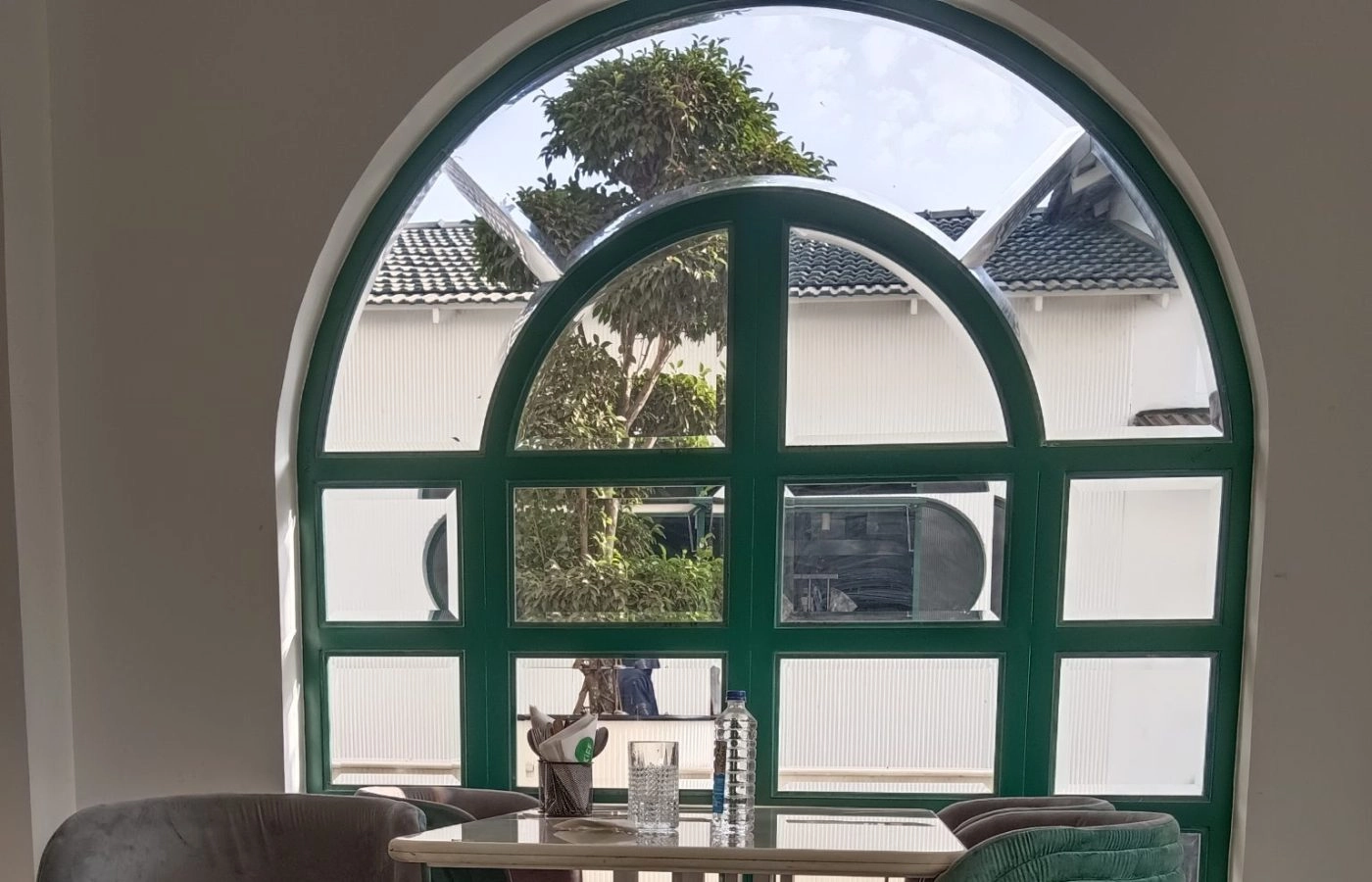
The Gallery Element shows a set of images in a grid or masonry layout. Each image is its own item with an optional title, caption and link, and the whole gallery can open in a lightbox so visitors can browse the images at full size.
It suits project photos, product shots, event pictures and any other collection of images. Large galleries can be split into pages with a Load More button or infinite scrolling, so the first screen stays light and loads quickly while visitors can still reach every image.
In this article: How To Use · Element Options · Image Options · Tips · Related Elements · Example
How To Use The Gallery Element
Add the Gallery Element to any column and use Bulk Image Upload to select several images at once; each one becomes a separate item. Choose the Gallery Layout: Grid gives equal cells, and Images Aspect Ratio with Images Focus Point crops them to one shape. Masonry keeps each image’s own proportions and uses Masonry Image Aspect Ratio and Masonry 2×2 Width to decide which images become landscape, portrait or large. Set Number Of Items to any value other than -1 to show the Pagination Type options.
On the Design tab set the Number of Columns and Column Spacing, a Hover Type and a border for every image. The Load More button has its own color, span and alignment options. On the Caption tab pick a Caption style: Above and Below place the text outside the image, the other styles lay it over the image with an animated effect.
Image Lightbox is on by default. Lightbox Content decides whether titles and captions appear in it, and a Lightbox ID joins the gallery with Image Elements that use the same ID. Each image item can also carry its own link; with the lightbox on, a link to another image opens that image in the lightbox instead.
Element Options
The tables below list every option of the element, grouped by the tabs you see when you edit it in the Builder. Many options depend on others, so the edit screen only shows the options that apply to your current choices.
Options left on Default take their value from Tirenoa → Options → Tirenoa Builder Elements → Gallery. Change them there to style every Gallery at once.
Options with a small state switch next to them can be set separately for the normal, hover and active state.
Options marked as responsive can be set separately for large, medium and small screens; the screen icon next to the option switches between them.
General
| Heading | Description |
|---|---|
| Content | Enter some content for this gallery. |
| Bulk Image Upload | This option allows you to select multiple images at once and they will populate into individual items. It saves time instead of adding one image at a time. |
| Order By | Defines how items should be ordered. NOTE: In the case of order by ASC and RAND, pagination in Live Builder will not work the same as the regular front-end. |
| Number Of Items | Choose the number of items you want to display. Set to -1 to display all. Set to 0 to use number of items from Settings > Reading. |
| Pagination Type | Choose the pagination type. |
| Load More Button Text | Insert custom load more button text. |
| Gallery Layout | Select the gallery layout type. |
| Picture Size | Fixed = width and height will be fixed. Auto = width and height will adjust to the image. |
| Images Aspect Ratio | Select an aspect ratio for the gallery images. IMPORTANT: Aspect ratio won’t work with masonry layout. |
| Custom Aspect Ratio | Set a custom aspect ratio for the image. |
| Images Focus Point | Set the gallery images focus point by dragging the blue dot. You can customize the focus point for each image. |
| Masonry Image Aspect Ratio | Set the ratio to decide when an image should become landscape (ratio being width : height) and portrait (ratio being height : width). IMPORTANT: The value of “1.0” represents a special case, which will use the auto calculated ratios like in versions prior to Tirenoa 5.5. |
| Masonry 2×2 Width | This option decides when a square 1×1 image should become 2×2. This will not apply to images that highly favor landscape or portrait layouts. IMPORTANT: There is a “Masonry Image Layout” setting for every image in the WP media library that allows you to manually set how an image will appear (1×1, landscape, portrait or 2×2), regardless of the original ratio. In pixels. |
| Image Lightbox | Show image in lightbox. Lightbox must be enabled in Global Options or the image will open up in the same tab by itself. |
| Lightbox Content | Choose if titles and captions will display in the lightbox. Titles and captions can only be displayed when this is globally enabled for the lightbox on the corresponding Global Options tab. |
| Lightbox ID | Set an ID for the lightbox of the gallery items. This can be used in Image elements to add images to the same lightbox gallery. |
| Margin | Enter values including any valid CSS unit, for example 4%. |
| Element Visibility | Choose to show or hide the element on small, medium or large screens. You can choose more than one at a time. |
| CSS Class | Add a class to the wrapping HTML element. |
| CSS ID | Add an ID to the wrapping HTML element. |
Design
| Heading | Description |
|---|---|
| Number of Columns | Set the number of columns per row. IMPORTANT: Masonry layout does not work with 1 column. |
| Column Spacing | Controls the column spacing for gallery images. |
| Hover Type | Select the hover effect type. Hover Type will be disabled when caption styles other than Above or Below are chosen. |
| Gallery Image Border Size | In pixels. |
| Gallery Image Border Color | Choose the border color. |
| Gallery Image Border Radius | Controls the gallery image border radius. In pixels (px), for example 1px, or “round”. |
| Load More Button Span | Controls if the load more button spans the full width/remaining width of row. |
| Load More Button Alignment | Select the button’s alignment. |
| Load More Button Text Color | Select load more button text color. |
| Load More Button Background Color | Select load more button background color. |
Caption
| Heading | Description |
|---|---|
| Caption | Choose the caption style. |
| Image Title Heading Tag | Choose HTML tag of the image title, either div or the heading tag, h1-h6. |
| Image Title Typography | Controls the typography of the image title. Leave empty for the global font family. |
| Image Caption Background Color | Controls the background color of the caption. |
| Image Caption Typography | Controls the typography of the image caption. Leave empty for the global font family. |
| Caption Border Color | Controls the color of the caption border. |
| Image Overlay Color | Controls the color of the image overlay. |
| Caption Align | Choose how to align the caption. |
| Caption Area Margin | In pixels or percentage, for example 10px or 10%. |
Extras
| Heading | Description |
|---|---|
| Conditional Rendering | Add conditional rendering logic for the element. The element will only be part of the post / page contents, if the set conditions are met. NOTE: Server cache can interfere with results. |
Image Options
Each image item holds the image, an optional title and caption, and its own link and link target. When the gallery uses a crop, you can move the focus point for this image separately.
General
| Heading | Description |
|---|---|
| Image | Upload an image to display. |
| Image Focus Point | Set the image focus point by dragging the blue dot. |
| Image Title | Enter title text to be displayed on image. |
| Image Caption | Enter caption text to be displayed on image. |
| Image Link | Add the url the image should link to. If lightbox option is enabled, you can also use this to open a different image in the lightbox. |
| Link Target | Controls how the link will open. |
Tips
- The alt text of each image comes from the Media Library. Fill it in there, since the gallery item has no alt field of its own.
- Images Aspect Ratio has no effect in the masonry layout, and masonry needs at least two columns.
- In the masonry layout you can fix the shape of a single image with the Masonry Image Layout setting of that image in the Media Library.
- Hover Type is switched off for the overlay caption styles; only Above and Below can be combined with a hover effect.
- Titles and captions only appear in the lightbox when they are also enabled for the lightbox in Global Options.